
To upload your Photo ID (US driver's license or Passport) and complete the Liveness Verification required by the Association, please carefully follow these instructions:
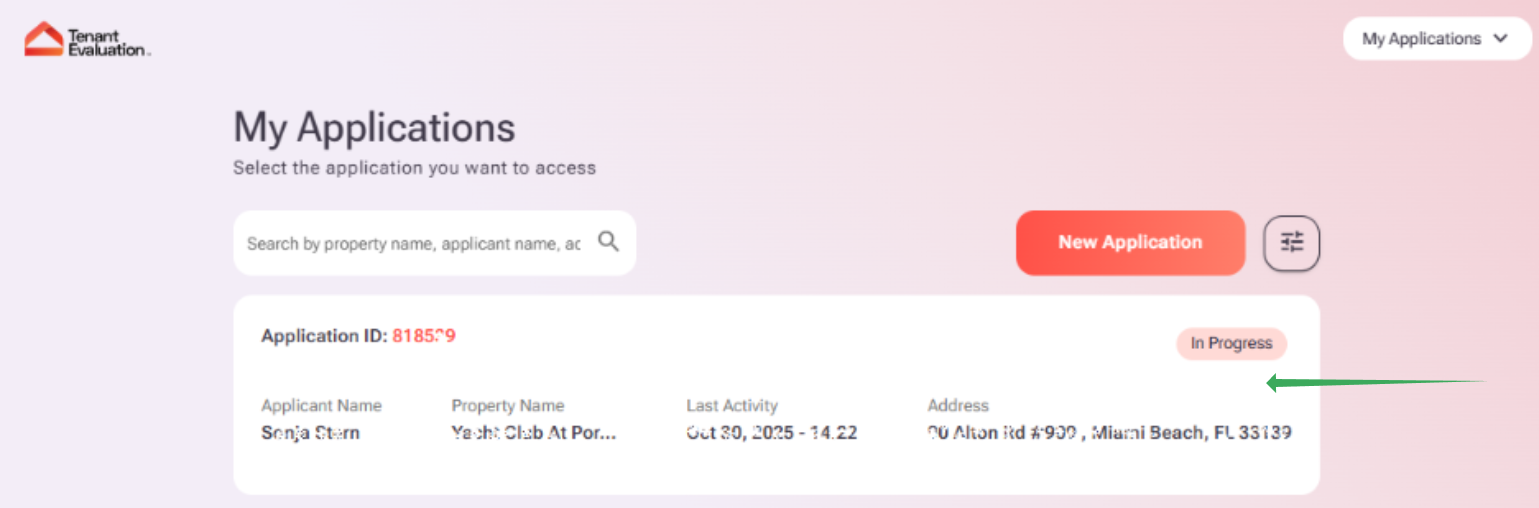
1. Log in to your tenant account at: https://tenantev.com/ and click the application that you created.
2. Scroll down until you see the "Pending" tab with the list of documents to upload. Then, click on the option "Upload File" next to the Photo ID requirement.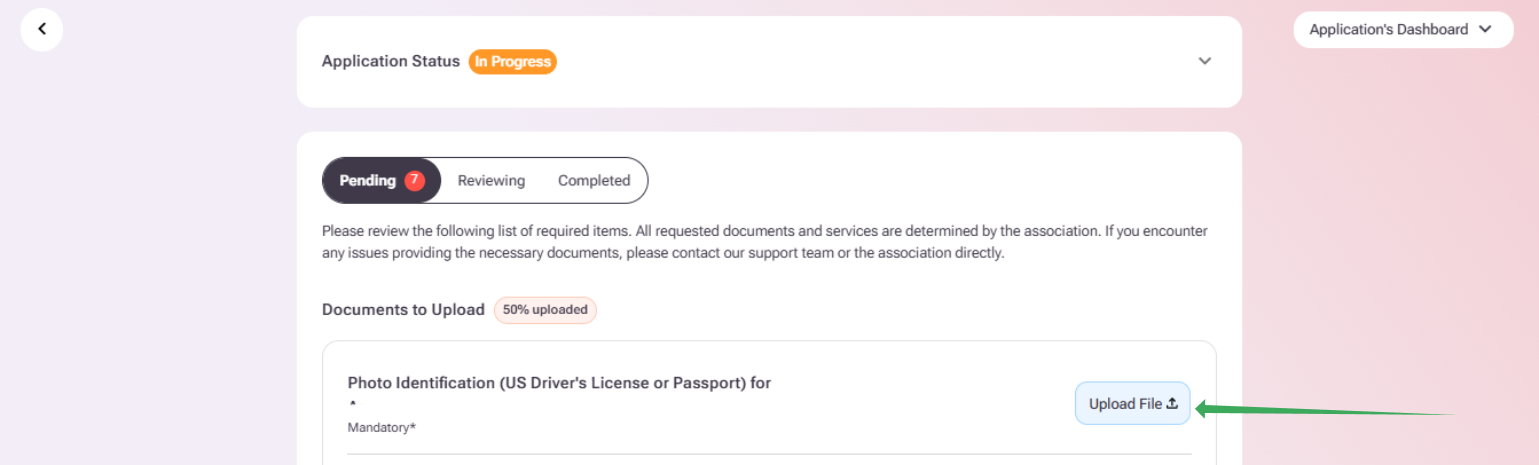
3. You will get the following explanation screen before proceeding. Please read, click on the checkbox, and then on the "confirm" option.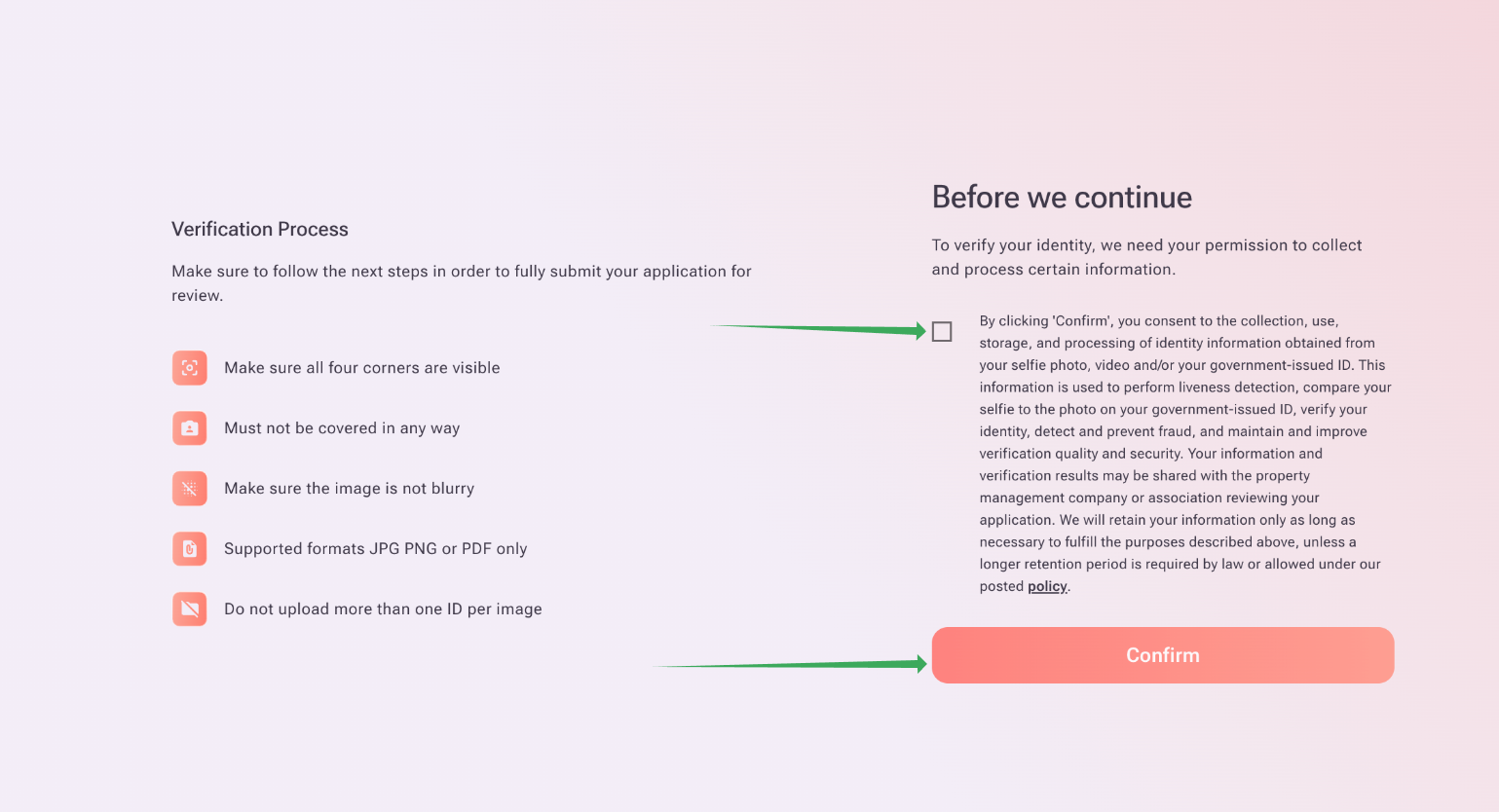
4. Once you click on "Confirm", you'll see the option to drag and drop the document or click to browse from your device. If your ID is saved on your documents, click on the cloud, and your device's folder will open. Please select the document from there.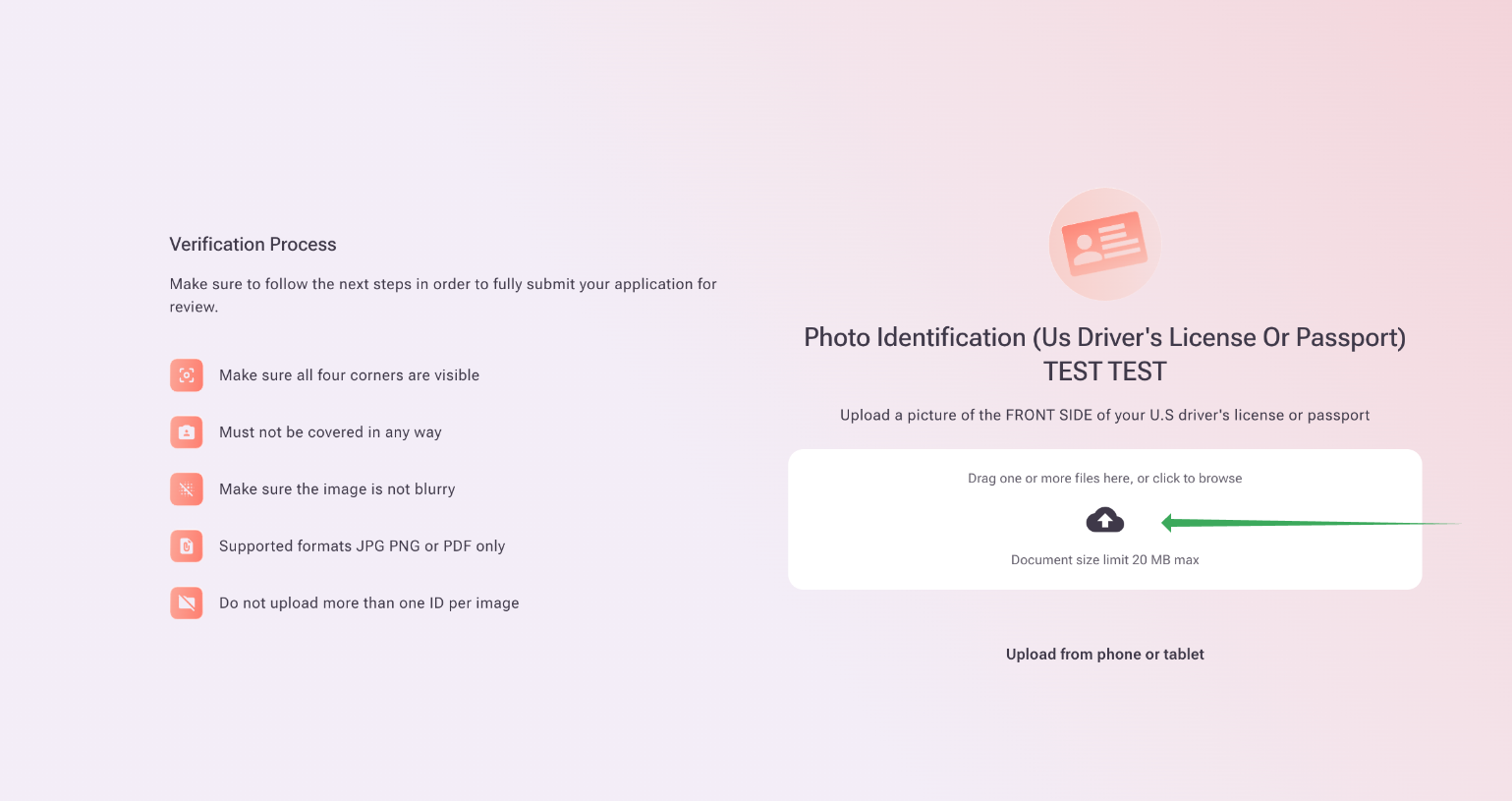
5. Once you select the document, if everything is clear and readable, the system will accept it, and you'll get the following page to complete the Liveness Verification required by the Association. Click on "Start Identity Check".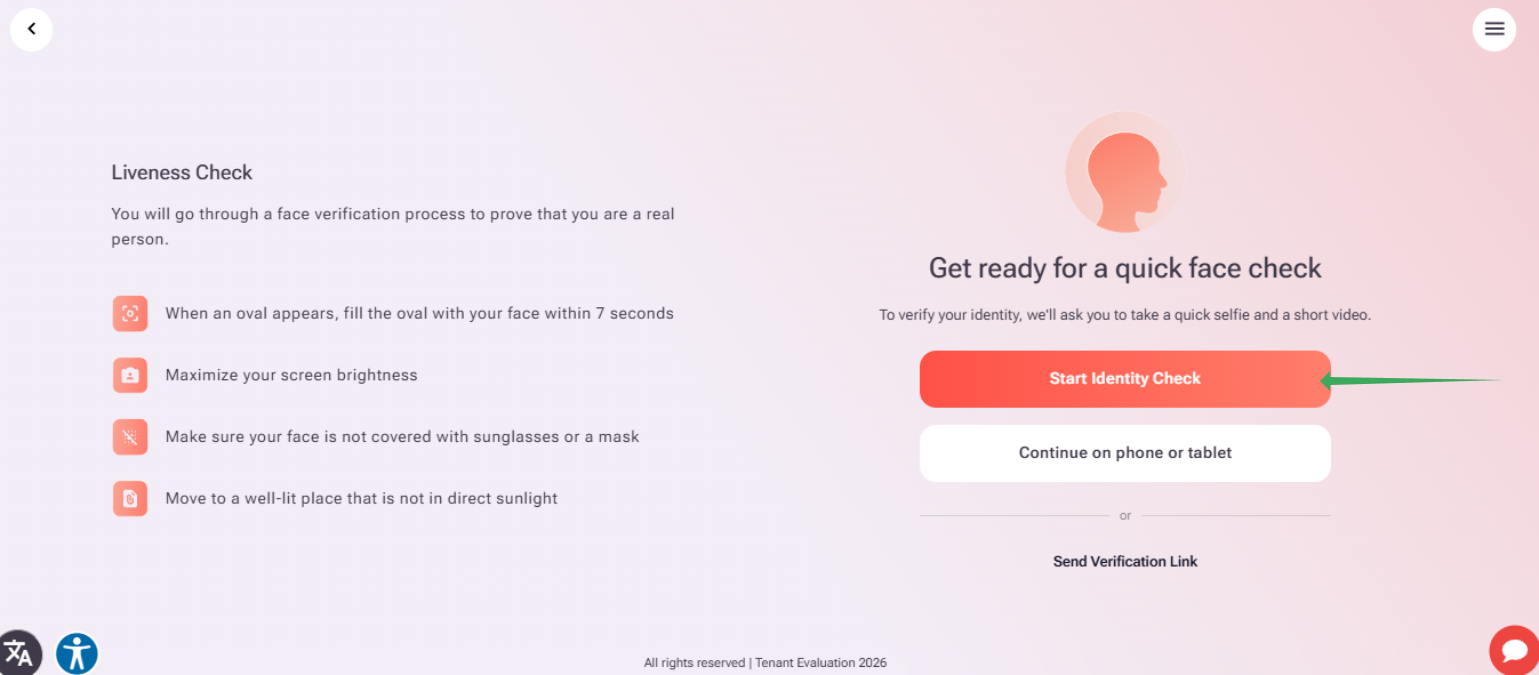
6. We'll try to access your camera for the verification; please allow tenantev.com to access it, and once done, the system will take a quick photo of you.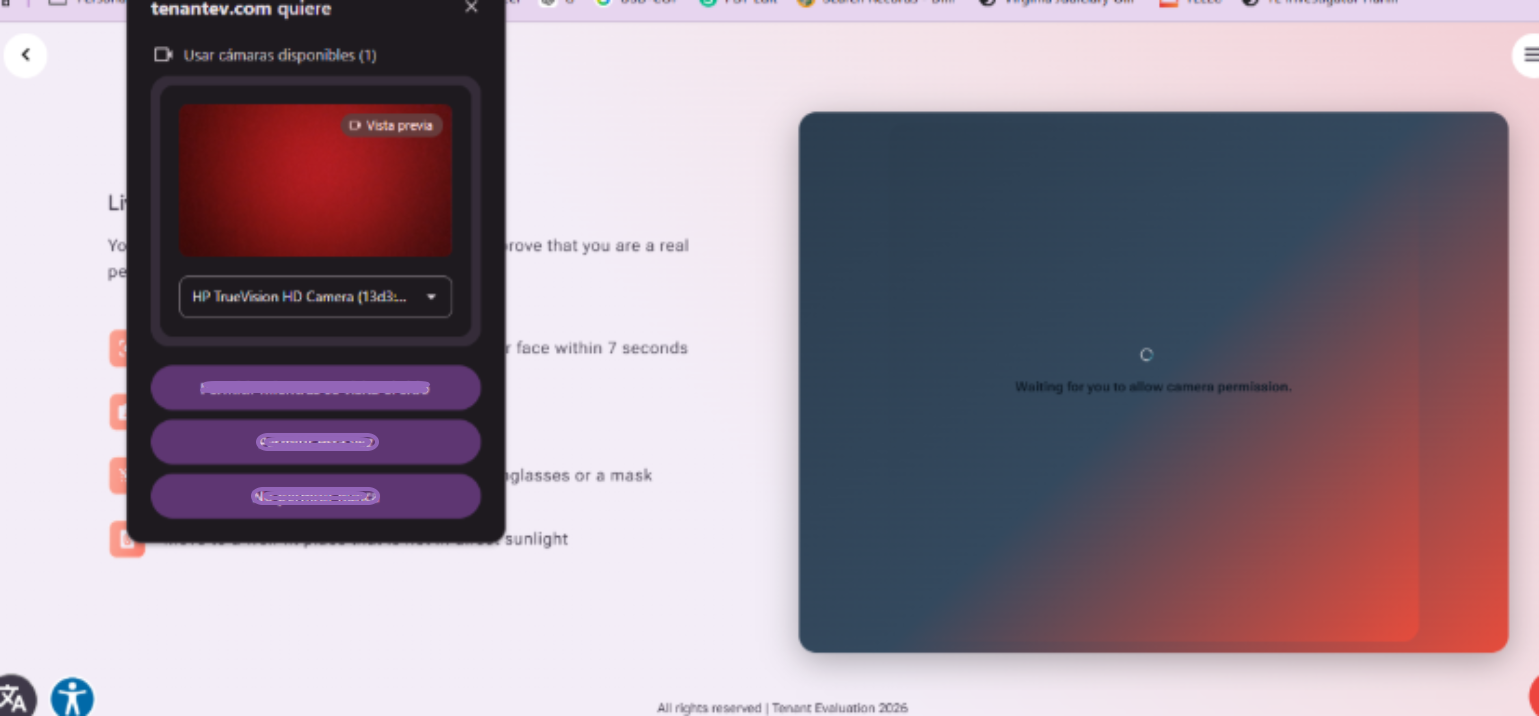
7. Once you complete the liveness verification, you'll get the following completion page confirmation, where you can click "Back to the dashboard".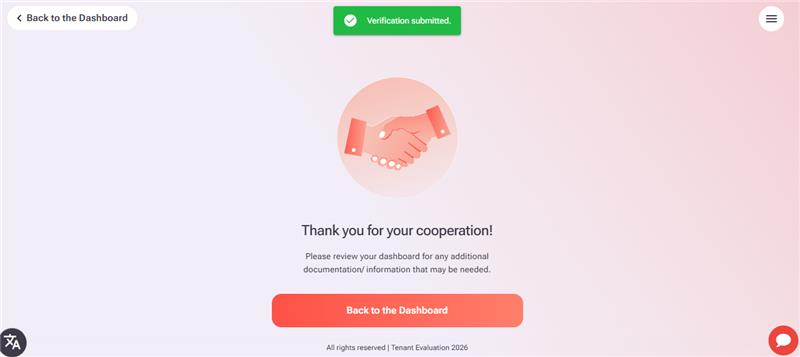
That's it! Your Photo ID will be uploaded, and liveness verification will be completed. If you face any issue within this process, please contact support@tenantevaluation.com for assistance; we'll be happy to help!